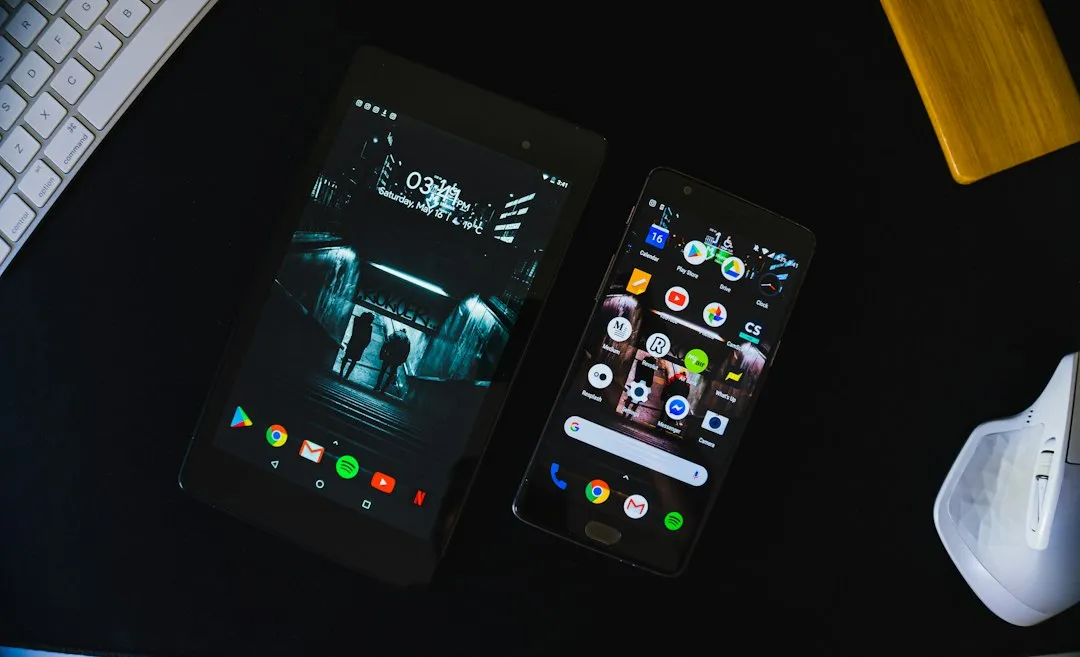
Finance Brain, our free financial literacy course app, is now on Google Play. Its lessons, quizzes and spaced review were already on the web at financebrain.app; now they’re in your pocket too. Sign in with the same Google account on both and your progress follows you.
We’ve written before about how one codebase runs several products on the web. This post is the mobile half of that story: how one React Native app became two apps on the Play Store, without a fork.
One app, built per site
Our mobile app is built with Expo. Its configuration is a file of code rather than a fixed JSON file, which means it can make decisions at build time. We added one switch, an environment variable naming the site, and a short table of what differs between the two apps:
- the app’s name and package ID (
com.financebrain.appinstead ofcom.braineos.app) - its link scheme, so links open the right app
- its launcher icon, adaptive icon and splash screen
- its own version number, build project and Play upload key
That’s everything the store and the phone’s operating system care about. Leaving the switch unset builds Braineos exactly as before, so the existing app didn’t change at all.
Everything else, the copy, colours and which features exist, lives in a site profile inside the app, the same idea as on the web. The build tells the app which site it is, and the app loads that profile when it starts.
Fail loudly on a mismatch
If the app is ever told it’s a site it doesn’t have a profile for, it refuses to start. Falling back to a default sounds friendlier, but the default would be Braineos, and the failure would be Finance Brain’s store listing shipping an app that says “Braineos” on every screen. A crash during testing is a much better way to find that out.
Courses first
Braineos is built around decks of flashcards you make or discover. Finance Brain is built around courses. So the app asks one question of the site profile: does this site have courses, but no user-made decks? If so, it leads with courses:
- Home shows your progress through each course and what to do next.
- A Courses tab takes the place of Braineos’s Discover tab.
- Lessons render natively, images and tables included, with a button that stays on screen to take the quiz when you’re ready.
- Quizzes are tappable multiple choice, ending with Next lesson or Back to course.
The same rule decides this on the website, so both always agree about what kind of product they are.
What the last checks caught
The bugs we found before submitting were all the kind that only show up on a real Android screen:
- Clipped text. Text was laid out with the system font before our custom font finished loading, then kept those narrower widths: a button read “Continue with Goog”. The splash screen now stays up until the fonts are ready.
- The wrong font for bold. Bold and italic text in lessons quietly fell back to the system font on Android. Each style now has its own font file.
- A blank band above the tab bar. Our screens left room for a tab bar that floats over the content, as it does on iPhone. On Android the tab bar sits below the screen instead, so the list stopped short with a gap of empty space. We fixed it in the build that went to review.
None of these would fail a test suite. All of them would have been in the first screenshots people saw.
Knowing what the app adds
A second way into the same product only matters if people use it. New accounts now record where they signed up: on the web, in the mobile app, or through an AI assistant. Over the next few weeks that will show us how many new Finance Brain learners the Android app brings in.
Get Finance Brain on Google Play, or try it on the web at financebrain.app. It’s free, and it’s educational content only, not financial advice.